
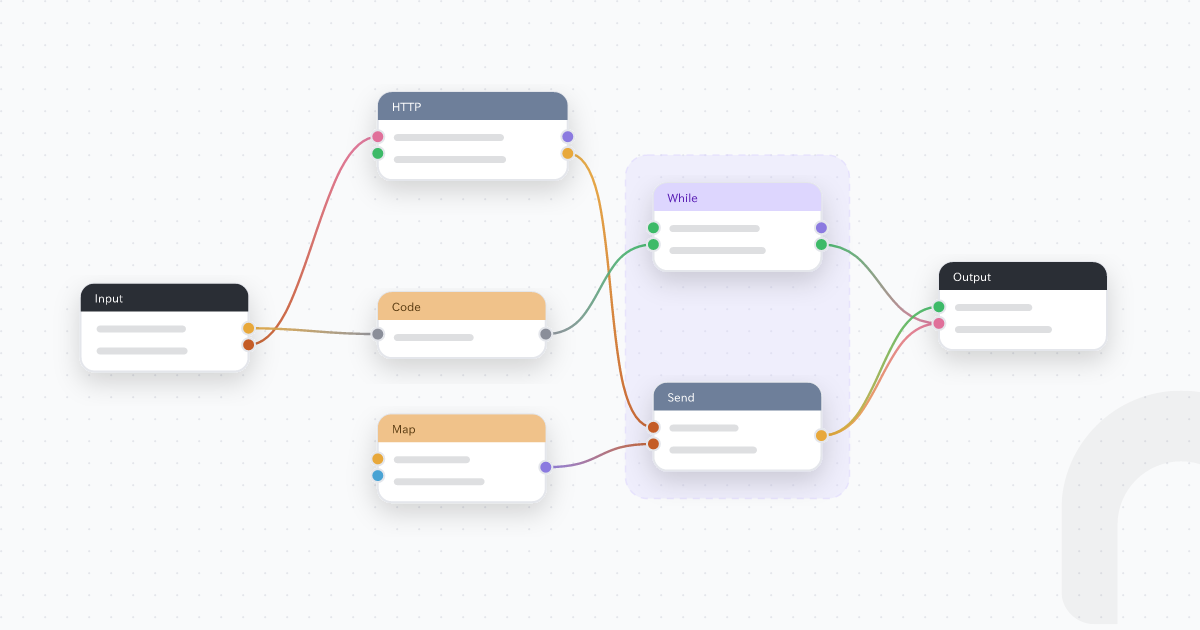
Smia lets you build small tools from the chat you already use. Describe a job you repeat, and your assistant builds the tool, tests it and turns it on in the same conversation. The tool lives on your own server URL, so you can use it again tomorrow and share it with a coworker.
This page covers connecting Claude, ChatGPT or Cursor, building your first tool, the Free plan limits, and where to get help.
1. Create your account
Signup is open. Go to app.smia.io/signup and continue with Google, GitHub, Microsoft or email. You can also skip this step: the first time you connect a chat, Smia's sign-in page lets you create the account there.
Every new account gets a personal hub on the Free plan. A hub holds your tools, your coworkers and your settings. The Free plan has no cost.
2. Connect your chat
Every chat app uses the same address:
https://app.smia.io/mcp
When you first sign in to the Smia app, the Connect your chat screen has a copy option for this URL and links for Claude, ChatGPT and Cursor. That screen only shows until your first chat is connected, so keep the address above if you want to connect another chat later.
Claude
- Go to Customize > Connectors and click Add custom connector.
- Name it
Smia, paste the URL and click Add. - Click Connect and sign in to Smia. If Claude asks about the OAuth client, choose Register automatically.
Works on every Claude plan, including Free (Anthropic allows one custom connector on Free). On Team and Enterprise, an Owner adds it under Organization settings > Connectors. Full walkthrough: Make your own Claude custom connector, no code.
ChatGPT
ChatGPT adds Smia as a custom MCP server, on the web only. Building and running Smia tools are write actions. OpenAI's help center lists full support for write actions on ChatGPT Business, Enterprise and Edu, and we haven't confirmed other plans yet. If your plan can't, use Claude or Cursor, or the Smia app's visual builder.
Cursor
Use Add to Cursor on the Connect your chat screen, or add Smia to your MCP settings file (~/.cursor/mcp.json for all projects, or .cursor/mcp.json in one project):
{ "mcpServers": { "smia": { "url": "https://app.smia.io/mcp" } } }
Cursor then asks you to sign in to Smia.
Signing in
Smia's sign-in page is on smia.tools, Smia's sign-in domain. Sign in with the same account each time, approve the connection, and you're back in your chat.
3. Build your first tool from chat
Pick a small job with a clear answer. For example:
Build me a tool that turns hours into an invoice amount at 950 NOK per hour, test it with 6 hours, then turn it on.
Every tool goes through the same three stages:
- Create. Your assistant picks the steps from Smia's catalog and creates the tool. New tools start switched off.
- Test. It runs the tool with sample input and shows the result of each step. Here: 6 hours gives 5,700 NOK. If a step fails, it sees which one and why, fixes it and tests again.
- Turn on. The tool is now on your server and ready to use: "Use the invoice tool for 12.5 hours."
You can change a tool later the same way ("add 25% VAT and test again"). If you'd rather click than chat, the Smia app has a visual builder for the same tools.
A few things worth knowing:
- Tests run for real. A tool that sends email or calls a web service does that during its test too.
- Keys and passwords never go in the chat. When a tool needs an API key, Smia gives your assistant a link to your hub settings, where you enter it.
- Apps with your own sign-in. Tools can use Google Workspace and Microsoft 365. Each person signs in to their own account. Microsoft Teams message search may need a Microsoft admin to approve access once.
- Typed inputs. Tools take text, numbers or lists. Paste a table and your assistant turns it into a list for the tool.
4. Share with a coworker
Invite a coworker to your hub, in the Smia app or by asking your assistant. They sign in with their own account and click Accept on the invite in the Smia app, and then your tools show up in their chat, through the same Smia connector or your server URL (it looks like https://smia.tools/your-hub/mcp).
On Free, everyone in the hub can use every tool on your server. Choosing who gets which server is on Hobby, and per-tool roles are on Pro.
5. Plans and Free limits
Free ($0):
- 1 server with up to 5 tools
- Up to 100 steps per tool, 5 seconds per run, 512 KB of output per step
- 1,000 tool runs, 10 emails and 200 web requests a month
- Up to 5 people in the hub, counting pending invites
- No Tasks (scheduled or webhook runs)
Hobby ($5/month, flat): 2 servers, 25 tools per server, 5,000 tool runs a month, up to 15 people, choose who gets which server, and Tasks (schedule, webhook or once; up to 25 per hub).
Pro ($20 per seat/month): 10 servers, 100 tools per server, 25,000 tool runs a month, unlimited people, per-tool roles, full run history, and four Pro-only steps: custom code, interactive views in the chat, PDF rendering and Excel workbook editing with code.
Your personal hub is the free one. Any extra hub needs Hobby or Pro. When you hit a limit, Smia tells your assistant which plan lifts it.
Tasks run one of your tools on a clock or a webhook. They are not AI agents. The prompt and the reasoning stay in your chat app.
6. If something doesn't work
- No Smia tools in the chat: check that Smia is switched on for this conversation, then ask "Check my Smia access."
- A tool fails: ask your assistant to show the failing step and fix it, then test again.
- Hit a plan limit: ask "Which plan is my hub on, and what's left this month?"
Privacy and support
Smia sees what your assistant sends to Smia's tools (the tool name and its inputs) and what those tools return. Hub secrets and sign-in tokens are stored encrypted. On Free and Hobby, Smia keeps usage records (who ran which tool, when, and whether it worked) and may keep the latest test run for debugging. Full run history is a Pro feature.
Smia may use tool designs (steps and settings, never secrets or sign-in tokens) and de-identified usage data to improve Smia. Pro hubs can ask to opt out.
- Privacy policy: smia.io/privacy. Privacy questions: privacy@smia.io.
- Help with anything else: support@smia.io.